Take the tour
A quick look at the real screens of AI Groupware, one step at a time.
-
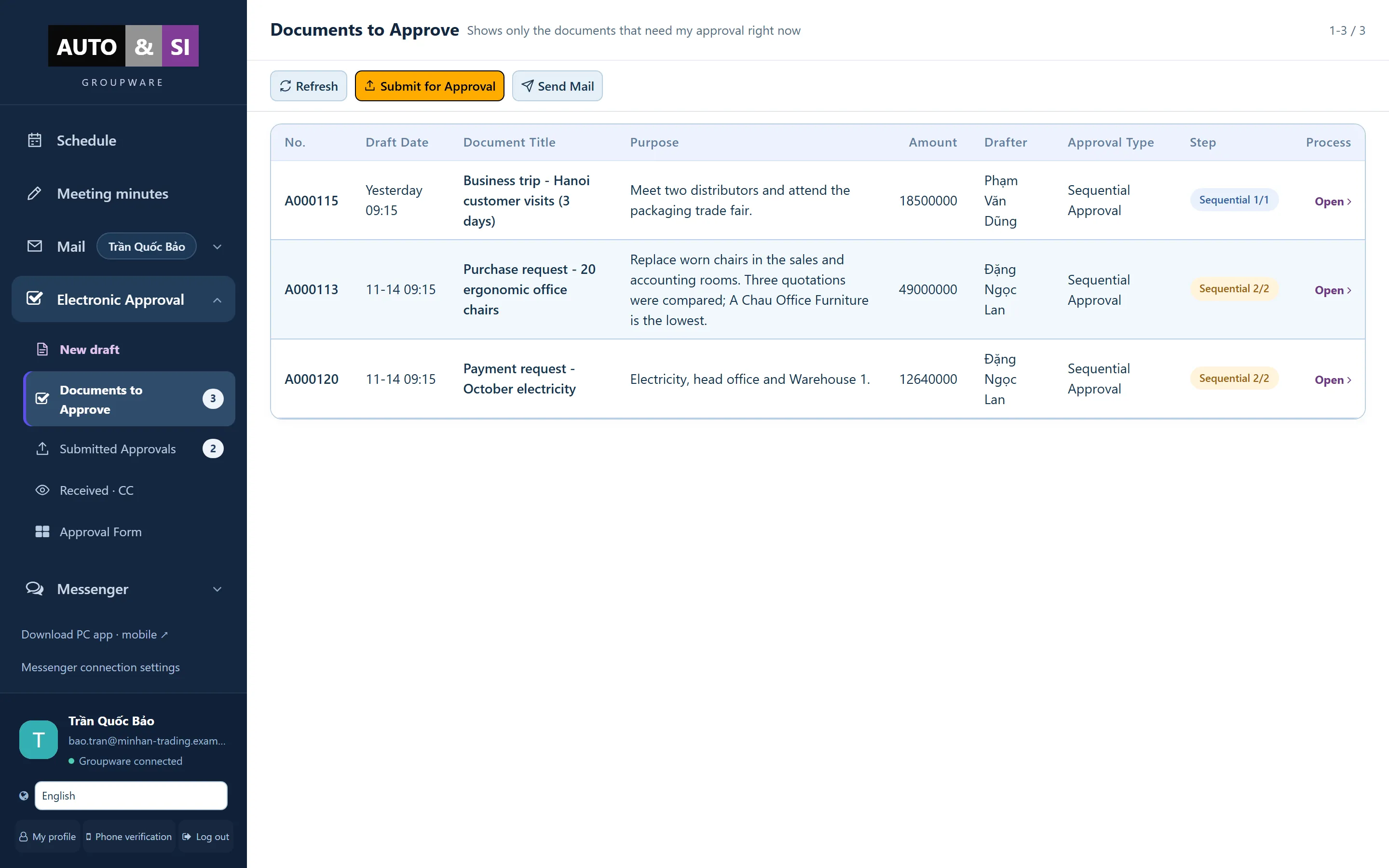 1
Everything waiting for you in one list
2
Open and decide in one click
Step 1 of 8
Approvals with a clear trail
Request, review and sign off documents. Every step is recorded, so nobody has to chase a reply in a chat.
- Everything waiting for you in one list
- Open and decide in one click
-
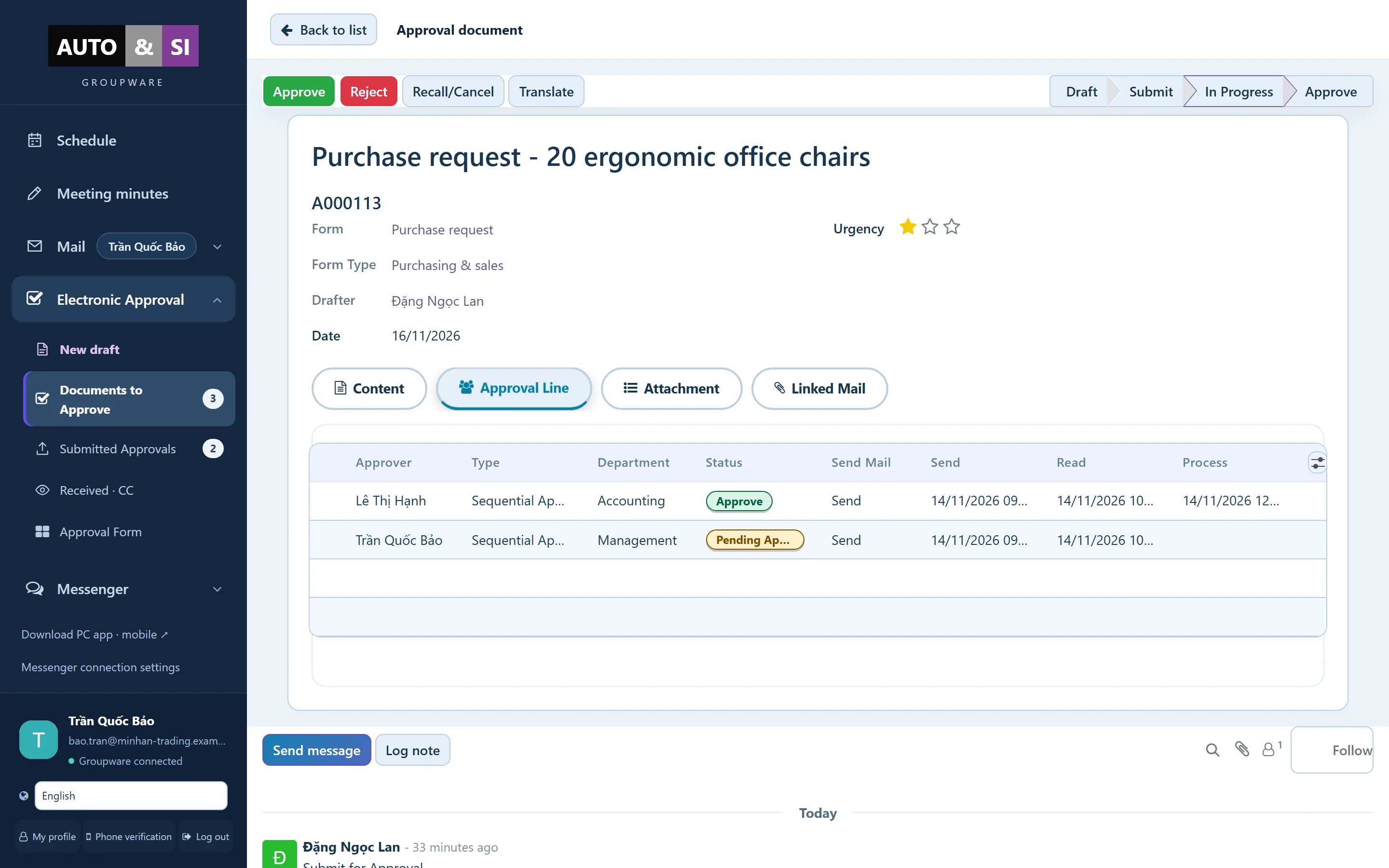 1
Each stage, approver and status
2
Time sent, read and processed
Step 2 of 8
See every approval stage
Each document shows who has to approve, who already did, and when.
- Each stage, approver and status
- Time sent, read and processed
-
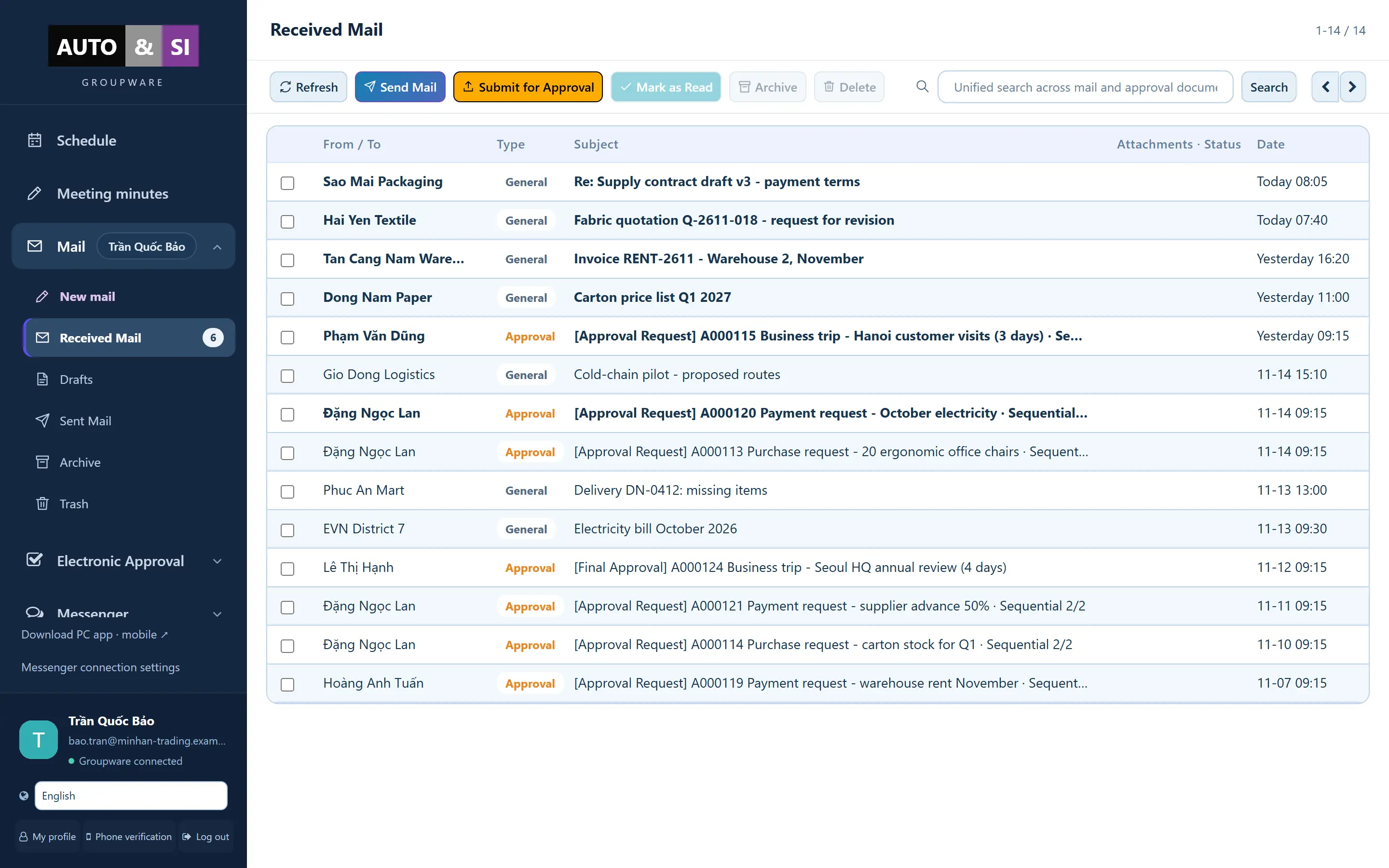 1
One sidebar for mail, approvals, chat and files
2
Approval requests arrive as mail
3
Search mail and approvals together
Step 3 of 8
One inbox for mail and approvals
Approval requests arrive next to your customer mail, so nothing waits unseen in another app.
- One sidebar for mail, approvals, chat and files
- Approval requests arrive as mail
- Search mail and approvals together
-
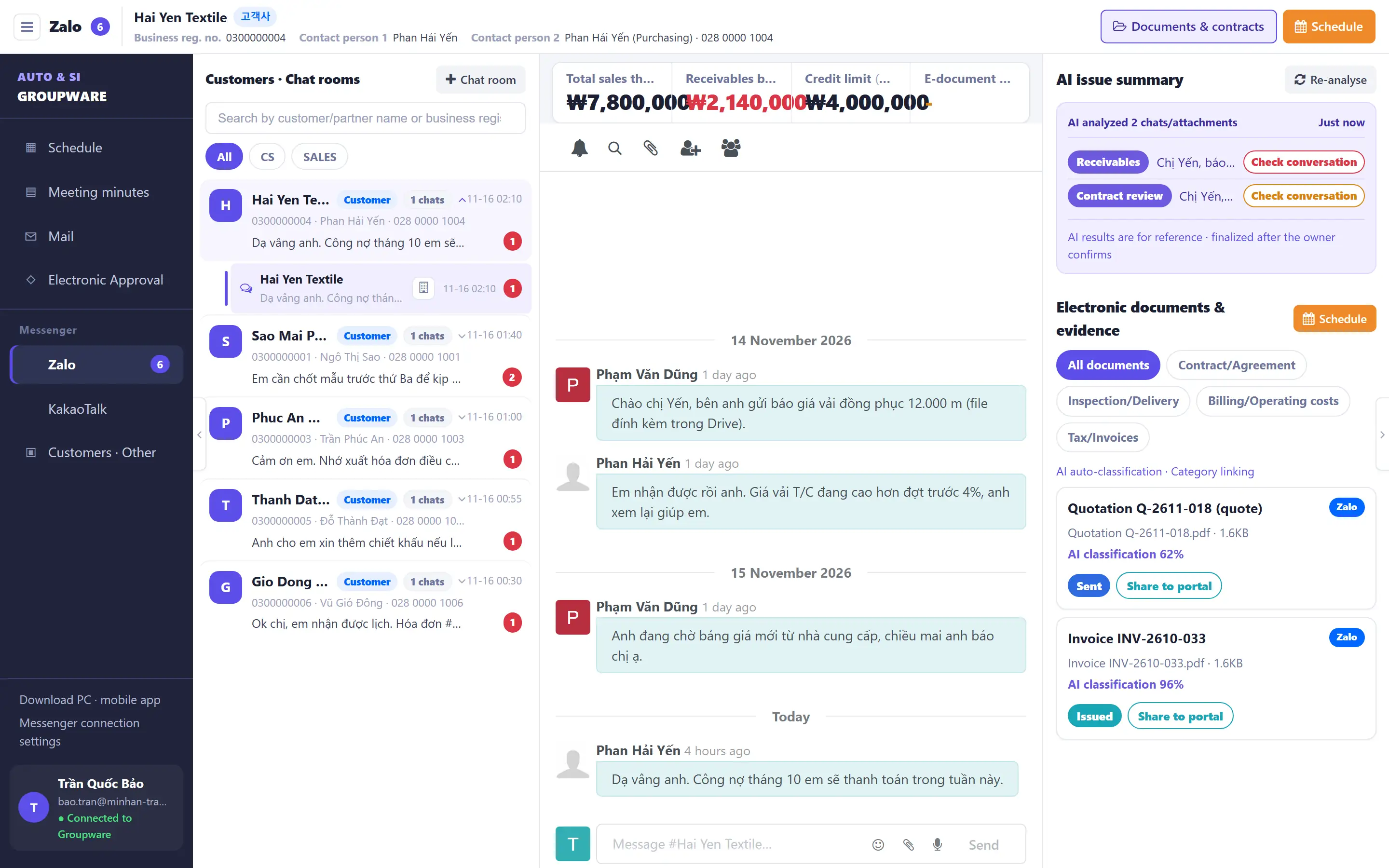 1
All customer chat rooms in one list
2
AI issue summary
3
Contracts and invoices linked to the customer
Step 4 of 8
Zalo customers in one inbox
Answer customers on Zalo from the same place as everything else, instead of from a personal phone.
- All customer chat rooms in one list
- AI issue summary
- Contracts and invoices linked to the customer
-
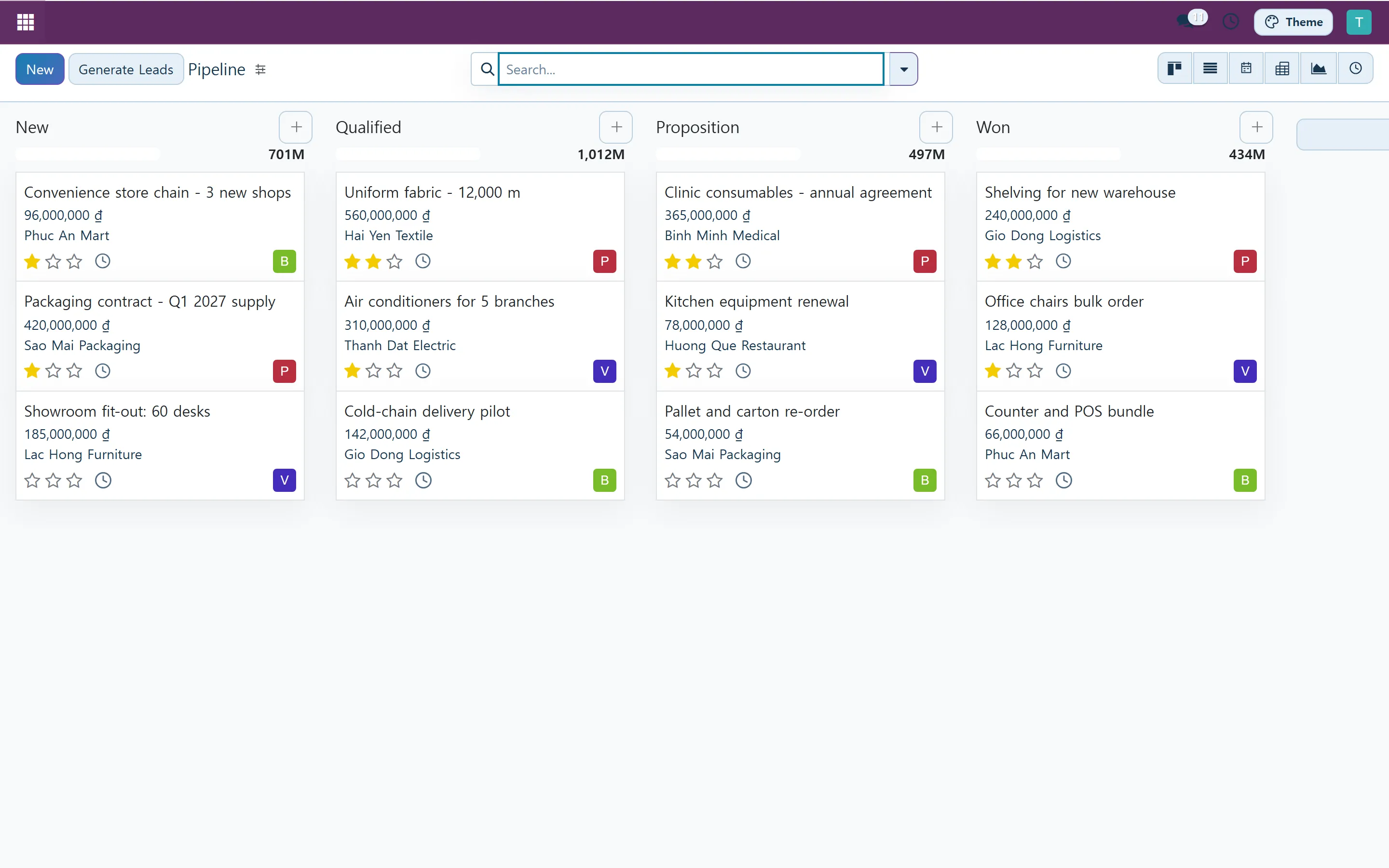 1
Stages with totals
2
A card with customer, value and priority
Step 5 of 8
Leads and customers, first contact to signed deal
See where every opportunity stands and who owns the next step.
- Stages with totals
- A card with customer, value and priority
-
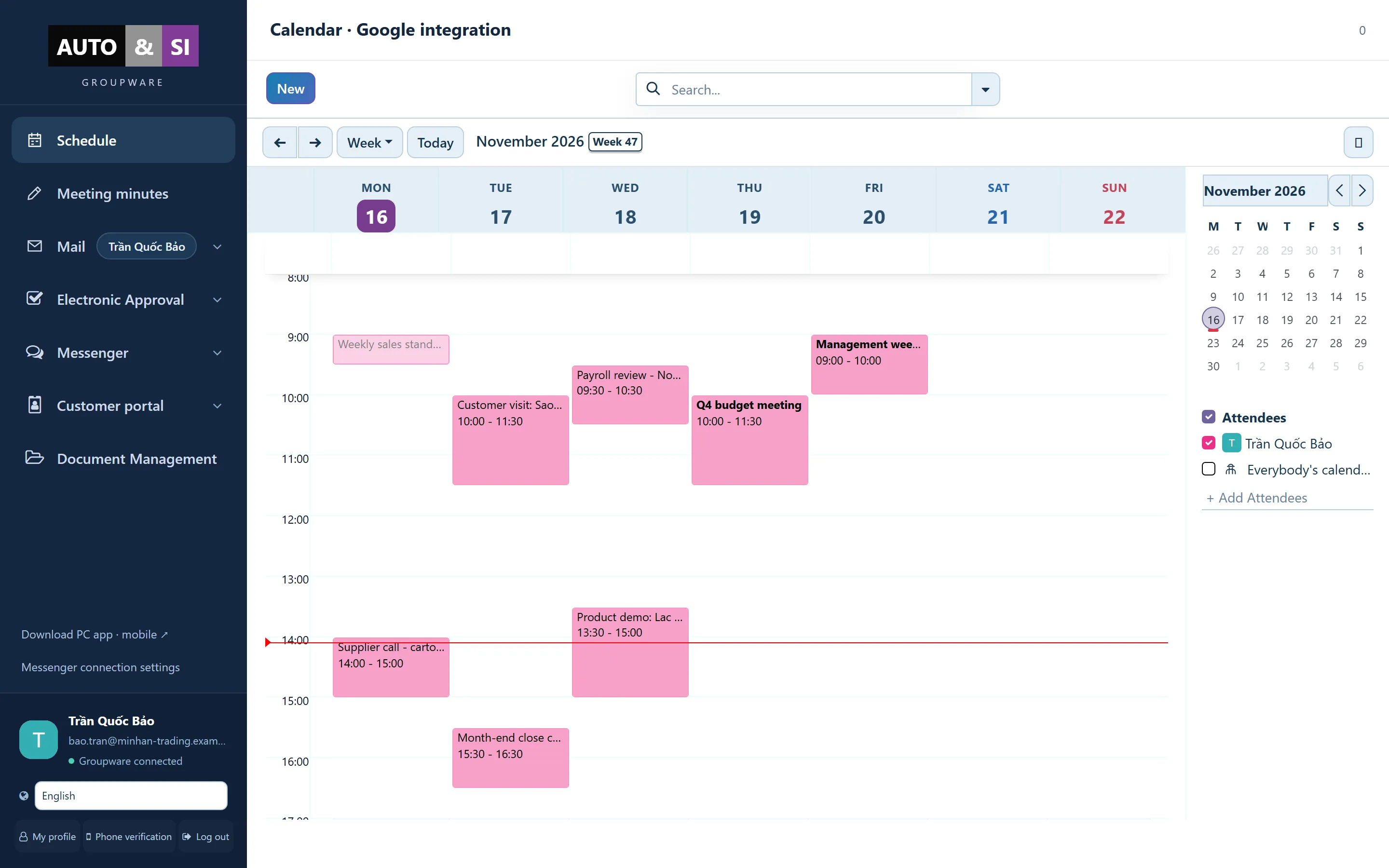 1
Team calendar by week
2
Pick whose calendars to show
Step 6 of 8
Calendar and meetings
Schedule, join and take notes without leaving the workspace.
- Team calendar by week
- Pick whose calendars to show
-
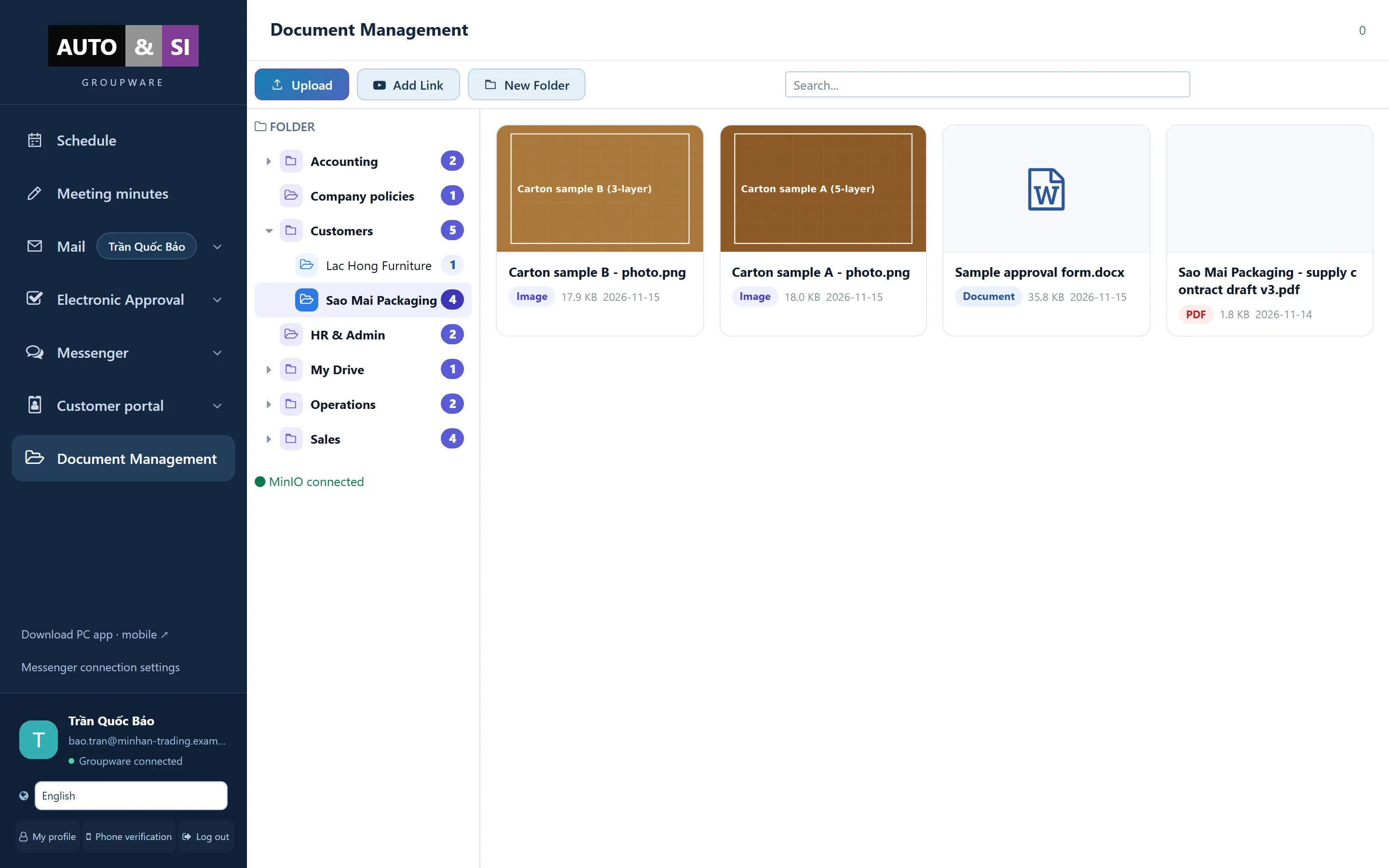 1
Folder tree per team and customer
2
Photos, contracts and forms with previews
Step 7 of 8
Company files, shared properly
Folders, sharing and search for the files your whole company works from.
- Folder tree per team and customer
- Photos, contracts and forms with previews
-
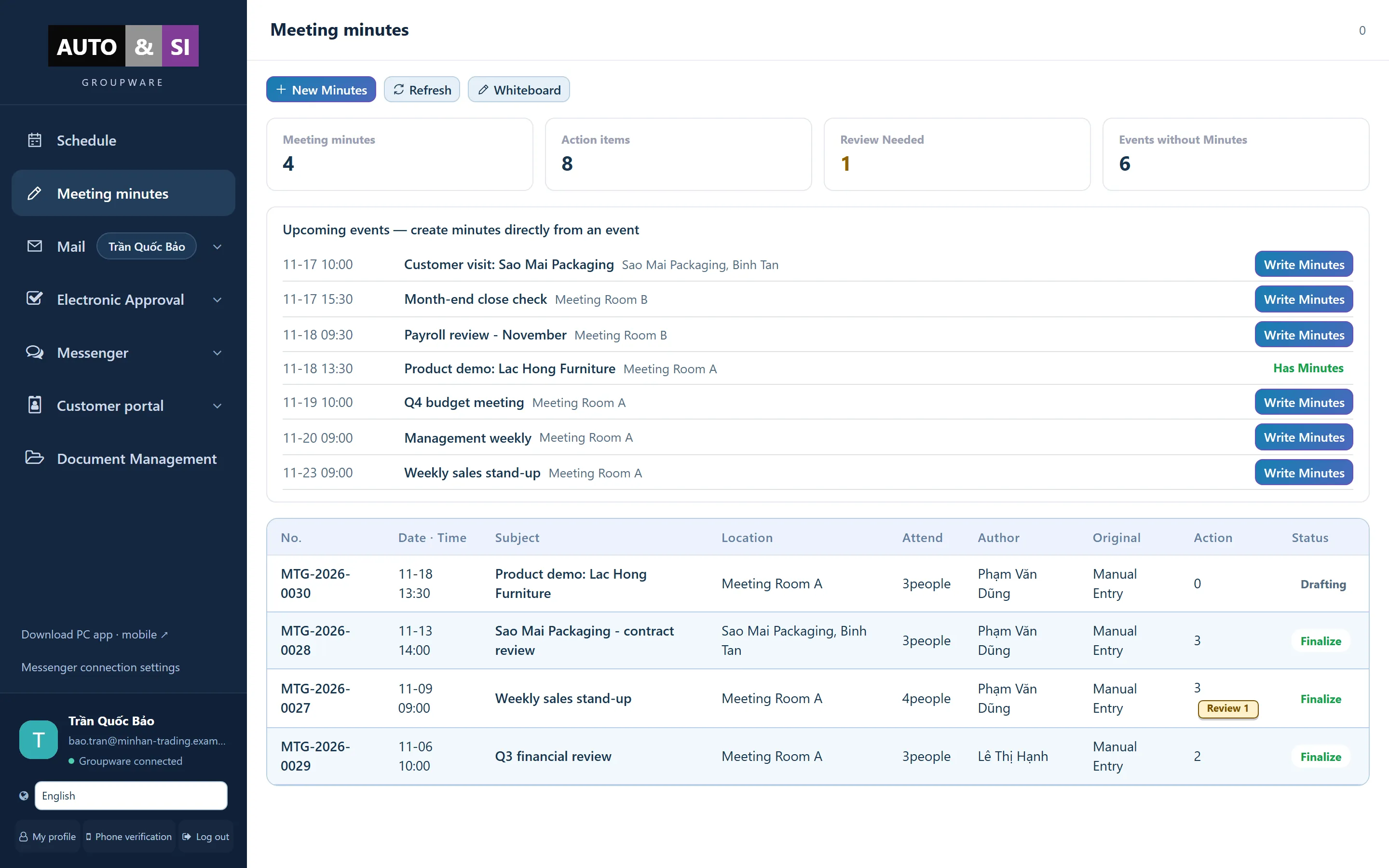 1
Write minutes straight from a calendar event
2
Status and action items for each meeting
Step 8 of 8
Meeting minutes and action items
Write minutes straight from a calendar event and follow every action item.
- Write minutes straight from a calendar event
- Status and action items for each meeting
Start free trialFree trial, no card needed.